Bambu Status Widget
If you like my work, consider supporting me ☕ Buy me a coffee

Your 3D print
live on your phone

A live notification and home screen widgets for Bambu Lab printers. See the time left, progress and loaded filaments on your lock screen, without opening an app.

Free, no ads. Android 12 or newer.

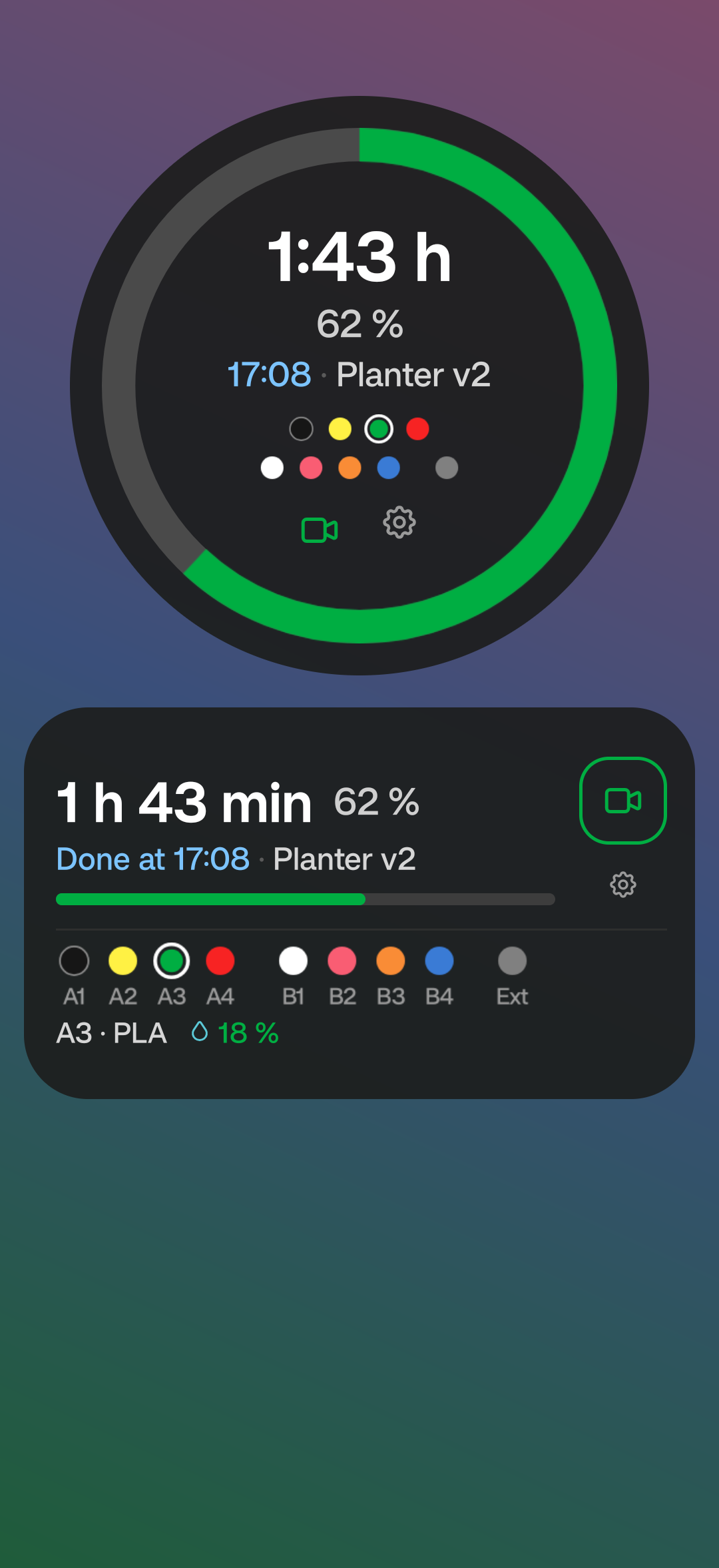
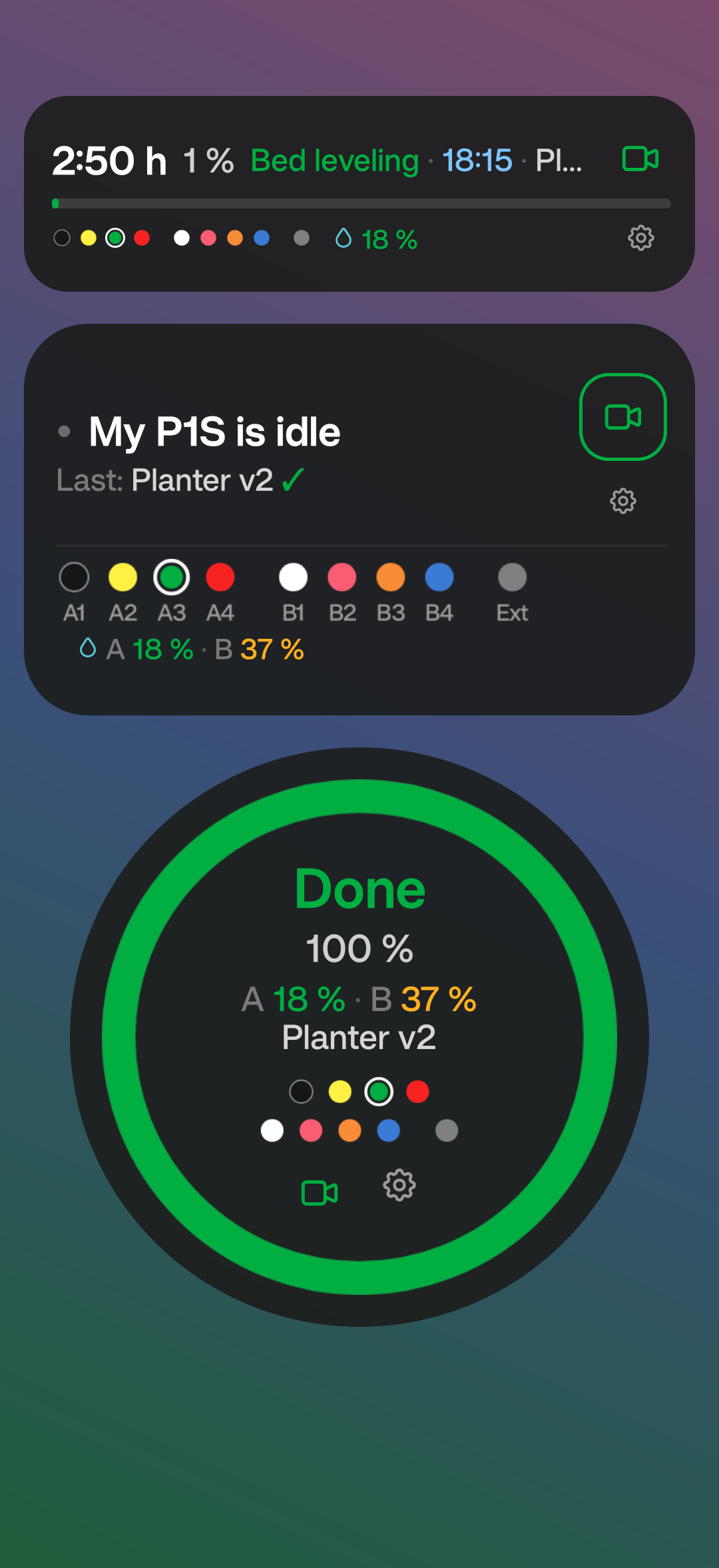
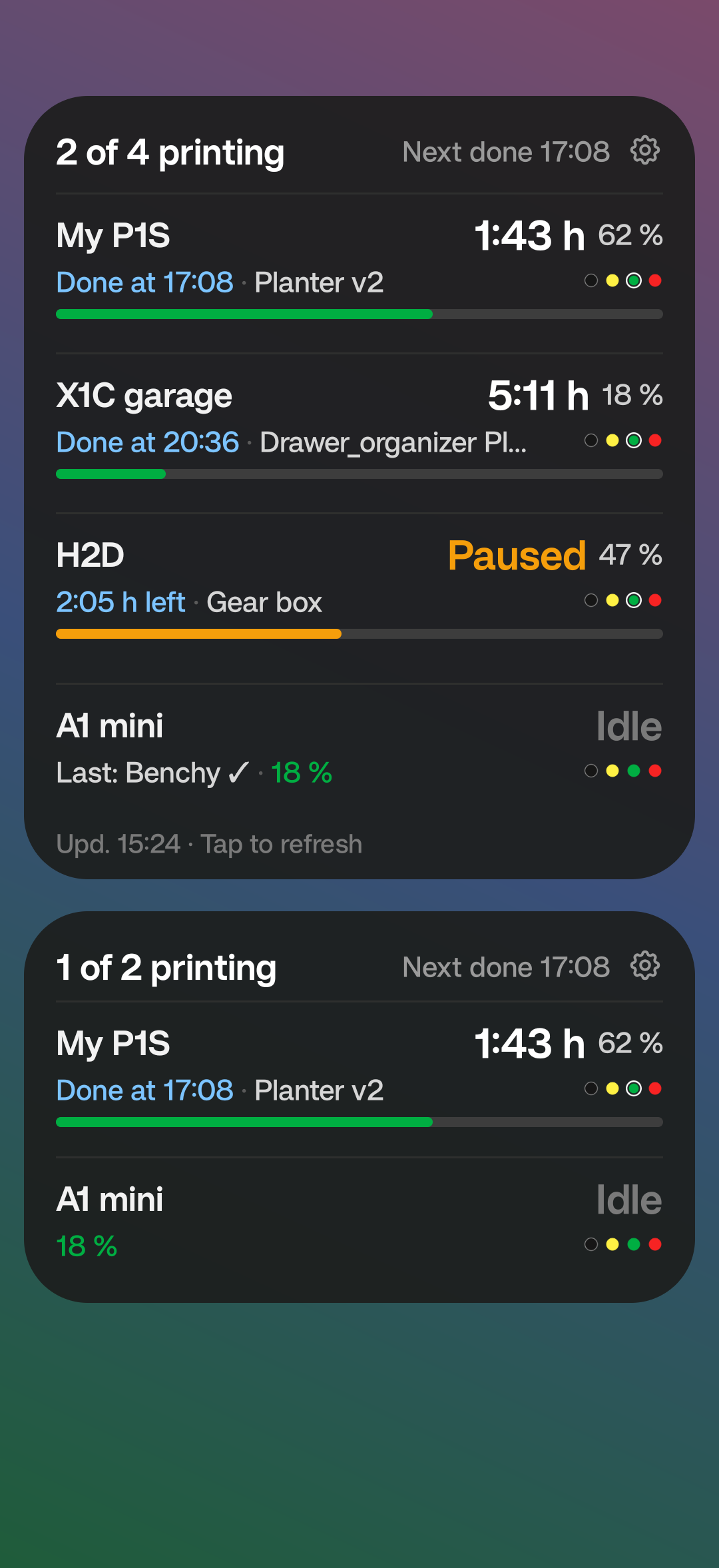
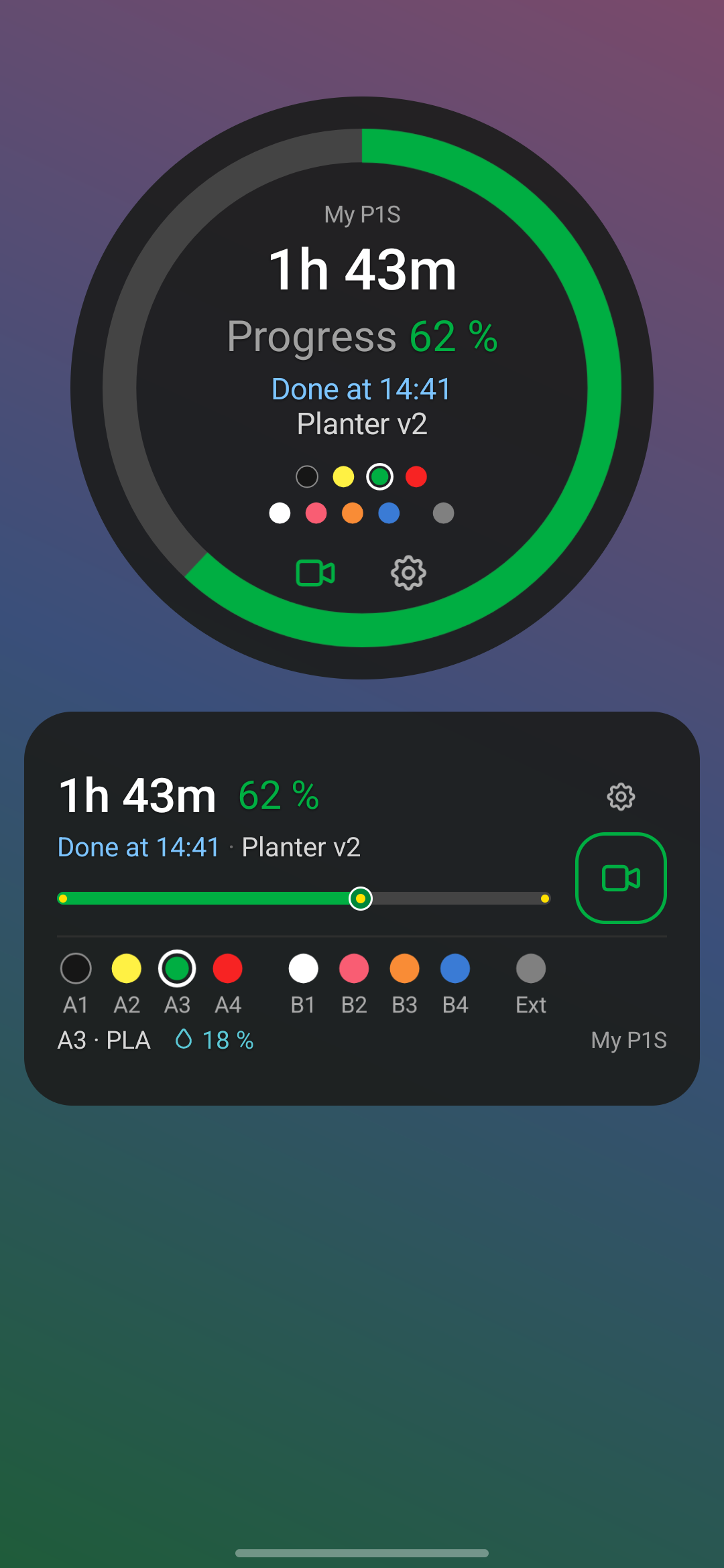
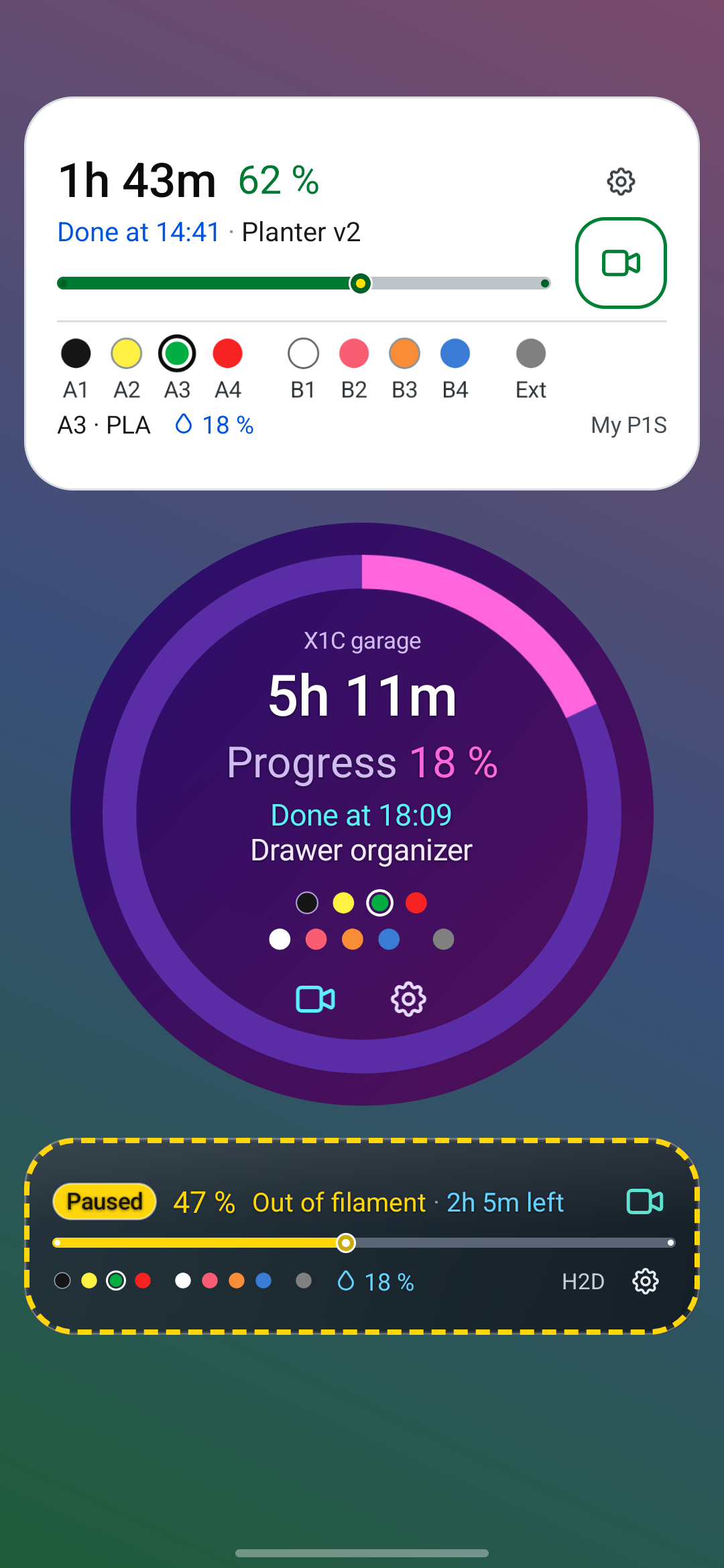
Lock screen with a Live Update: time left, percent, printer and job name, and a progress bar; the percent also shows in the status bar Live Update on an Android 16 Pixel lock screen, and the percent in the status bar The notification on a lock screen, and the notification shade with a line for each printing printer Round widget with a progress ring, time left and filament dots, and a rectangle widget with AMS slots and humidity Daylight rectangle widget, Neon round widget and a paused strip in Liquid

What it shows

You choose what each widget shows.

Live notification

Time left and progress on your lock screen and in the notification shade while a print runs, until a few minutes after it ends. On Android 16 it's a Live Update with the progress in the status bar. Each printer gets its own line. Works without any widget, and you can switch it off.

Progress

A ring or bar that fills as the print goes. Paused, failed and offline stand out by colour and shape.

Time

Time left and the time the print will finish.

Filaments

All spools in the AMS and on the external holder. The one in use is marked.

Temperatures

Nozzle and bed temperature and the speed mode.

AMS humidity

See when your filament is getting damp.

Idle

Shows whether the last print finished or failed.

Fast refresh

Every few seconds while the printer heats up, calibrates, changes filament and in the last 10 minutes of a print. Every minute otherwise while your screen is on.

Themes

Six themes, chosen for each widget. Material takes your phone's colours and follows its dark mode.

Shapes and setup

Pick a rectangle, a circle or a strip in one of seven sizes, right in the settings. With several printers, one widget can show up to six. Pick one of six themes and make the background as transparent as you like.

  1. Install the app from Google Play and open it.
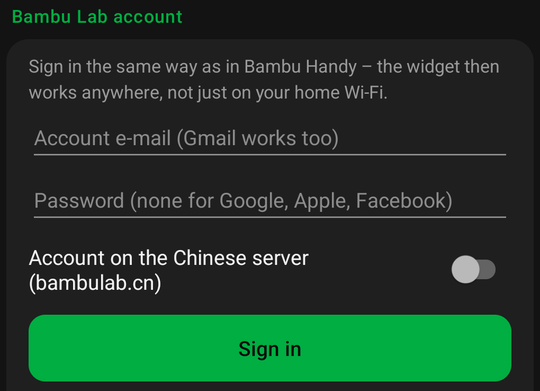
  2. Sign in with your Bambu Lab account, the same one you use in Bambu Handy. Google, Apple and Facebook accounts work too (how). The sign-in card in the app: account e-mail, password, a switch for the Chinese server and the Sign in button
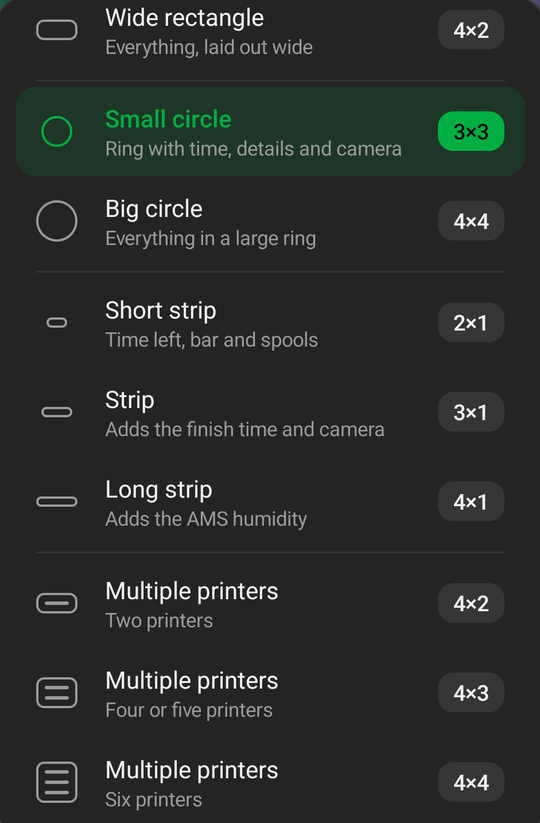
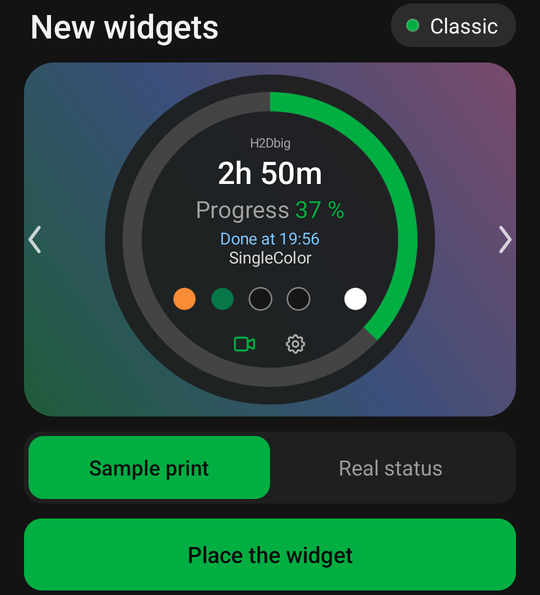
  3. Choose a shape and size, then tap Place the widget. The preview at the top shows how it will look. The shape list: wide rectangle, small and big circle, three strips and Multiple printers in three sizesThe settings screen with a live preview of the round widget, the Classic theme and the Place the widget button

Tap the widget to refresh it. Tap the camera icon to open Bambu Handy. The live notification is on from the start once you allow notifications; switch it off in the app's settings under Notification.

Signing in

The app signs in to your Bambu Lab account, the same one you use in Bambu Handy. Your password goes only to Bambu Lab and is never stored.

Which ways of signing in work?

All Bambu Lab accounts work:

  • an account with an e-mail and password,
  • an account made with Google, Apple or Facebook (you sign in with a code sent by e-mail),
  • an account on the Chinese server (bambulab.cn).

You can also skip the account and connect straight to your printer over your home Wi-Fi.

How do I sign in with my e-mail and password?

Enter your account e-mail and password and tap Sign in. Sometimes Bambu Lab also sends a verification code to your e-mail. Enter it in the field that appears and tap Sign in again.

I signed up with Google, Apple or Facebook. How do I sign in?

Enter the e-mail of your Bambu Lab account and leave the password empty. Tap Sign in and Bambu Lab sends a code to that e-mail. Enter the code and tap Sign in again. No code? Check your spam folder or tap Resend code.

If you used Apple's Hide My Email, your account e-mail is the one ending in privaterelay.appleid.com. The code still arrives in your normal inbox.

The app says Bambu Lab wants to check that I'm not a robot

Bambu Lab sometimes asks for this check after several sign-ins, and only their own page can show it. Tap Sign in on Bambu Lab's page and sign in there; it brings you back to the app when you're done. The check usually stops by itself after a few hours, too.

The Google, Apple and Facebook buttons don't work on that page inside an app. If your account was made with one of them, open bambulab.com in your browser, sign in the usual way and set a password in your account settings. Then sign in on Bambu Lab's page with your e-mail and that password.

My account is on the Chinese server

Tick Account on the Chinese server (bambulab.cn) before you tap Sign in.

I use two-step verification with an authenticator app

The app doesn't support authenticator codes yet. Until it does, you can connect over your home Wi-Fi instead (see below).

Can I use it without signing in to Bambu Lab?

Yes. Open Printer IP and access code in the app and enter your printer's IP address, serial number and access code. You'll find the IP and access code on the printer under Settings → WLAN. Then tap Save backup and test.

The widget then updates only when your phone is on the same Wi-Fi as the printer. If you're signed in too, this is a backup for when the cloud can't be reached. Step by step: How do I set up LAN mode?

How long do I stay signed in?

About three months. When Bambu Lab's sign-in runs out, the app asks you to sign in again. The sign-in token stays encrypted on your phone, and Sign out removes it together with your printer details.

FAQ

How do I turn on Live Updates?

Live Updates need Android 16 and a phone that shows them. Open the phone's settings, then Notifications, Bambu Status Widget, and allow Live Updates (the name differs a little between phone makers). Other phones get the regular live notification.

Does it work in the Samsung Now Bar?

Yes, with a workaround. Samsung shows only apps from its own list in the Now Bar, so by default the print shows as a regular notification. Until Samsung adds the app, you can switch it on yourself:

  1. Turn on Developer options: open Settings → About phone → Software information and tap Build number seven times.
  2. Open Settings → Developer options and turn on Live notifications for all apps.
  3. Start a print, or the demo in the app. The time left and progress now show in the Now Bar on the lock screen.

The switch is only on newer One UI versions; One UI 8.0 doesn't have it. It works for every app, so other apps' live notifications can show in the Now Bar too. Thanks to the tester who found it!

Can I have one widget per printer?

Yes. Every widget can show a different printer, so you can put your main printer on one home screen page and another printer on the next. Place a widget, tap the gear on it (or long-press it and choose edit) and tap the printer it should show. Then place a second widget and pick the other printer.

If you place the widget with Place the widget in the app, it asks which printer right away. To see several printers in one widget, use Multiple printers instead.
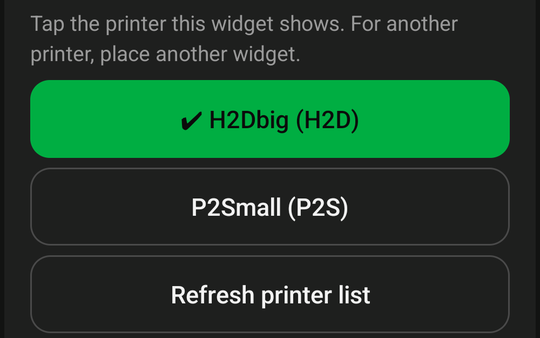
The printer list in the widget settings: H2Dbig is ticked, P2Small can be tapped instead
How do I set up LAN mode?

LAN mode connects the widget straight to your printer over your home Wi-Fi, without Bambu Lab's cloud. If you're signed in, it's a backup for when the cloud can't be reached. Without an account, it's the only connection.

  1. On the printer, open Settings → WLAN and note the IP address and the access code.
  2. Find the printer's serial number in Bambu Handy or on the printer. If you're signed in, the app fills it in from the printer you picked.
  3. In the app, open Printer IP and access code under Backup – home Wi-Fi and enter the IP address, serial number and access code.
  4. With your phone on the same Wi-Fi as the printer, tap Save backup and test. When it works, the app shows "Connected" with the printer and its progress.
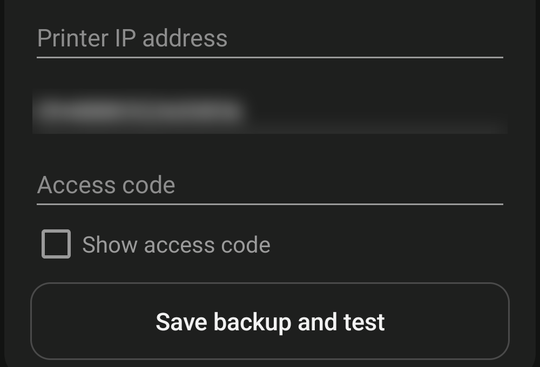
The home Wi-Fi fields in the app: printer IP address, serial number, access code and the Save backup and test button

Without an account, the widget updates only while your phone is on that Wi-Fi. Tip: give the printer a fixed IP address in your router, so it doesn't change after a restart. If you change the printer's access code, enter the new one and test again.

The app remembers your printer's certificate and won't send the access code to any other device. If it ever says the certificate changed, check you're on your own Wi-Fi and tap Save backup and test again.

Why doesn't the camera button open the right screen in Bambu Handy?

Open the Bambu Handy settings and set Home Page to Devices.

Is the widget secure?

Yes. You sign in to Bambu Lab, just as in Bambu Handy. Your password goes only to Bambu Lab and is never stored. The app keeps only the sign-in token that Bambu Lab sends back, and it is encrypted on your phone. Nothing is sent to me or anyone else.

Is the widget free?

Yes, and it will stay free. If you like it, please consider supporting further development.

☕ Buy me a coffee

Does it work with other 3D printer brands?

No, the widget is made only for Bambu Lab printers.

Will there be more visual styles?

There are six themes now: Classic, Daylight, Material, Liquid, Neon and Candy. Material uses your phone's own colours; Material and Liquid (frosted glass) follow the phone's dark mode.

Will there be an iOS version?

No, sorry.
About

I'm Jan Legát, a maker from the Czech Republic. I made this widget because I wanted to check on my prints without opening an app.

It's a one-person project with no ads and no tracking. The app talks only to Bambu Lab and your printer.

Questions or bugs? Email me at houmer.dev@gmail.com.